



How to Prepare Artwork for Laser Engraving
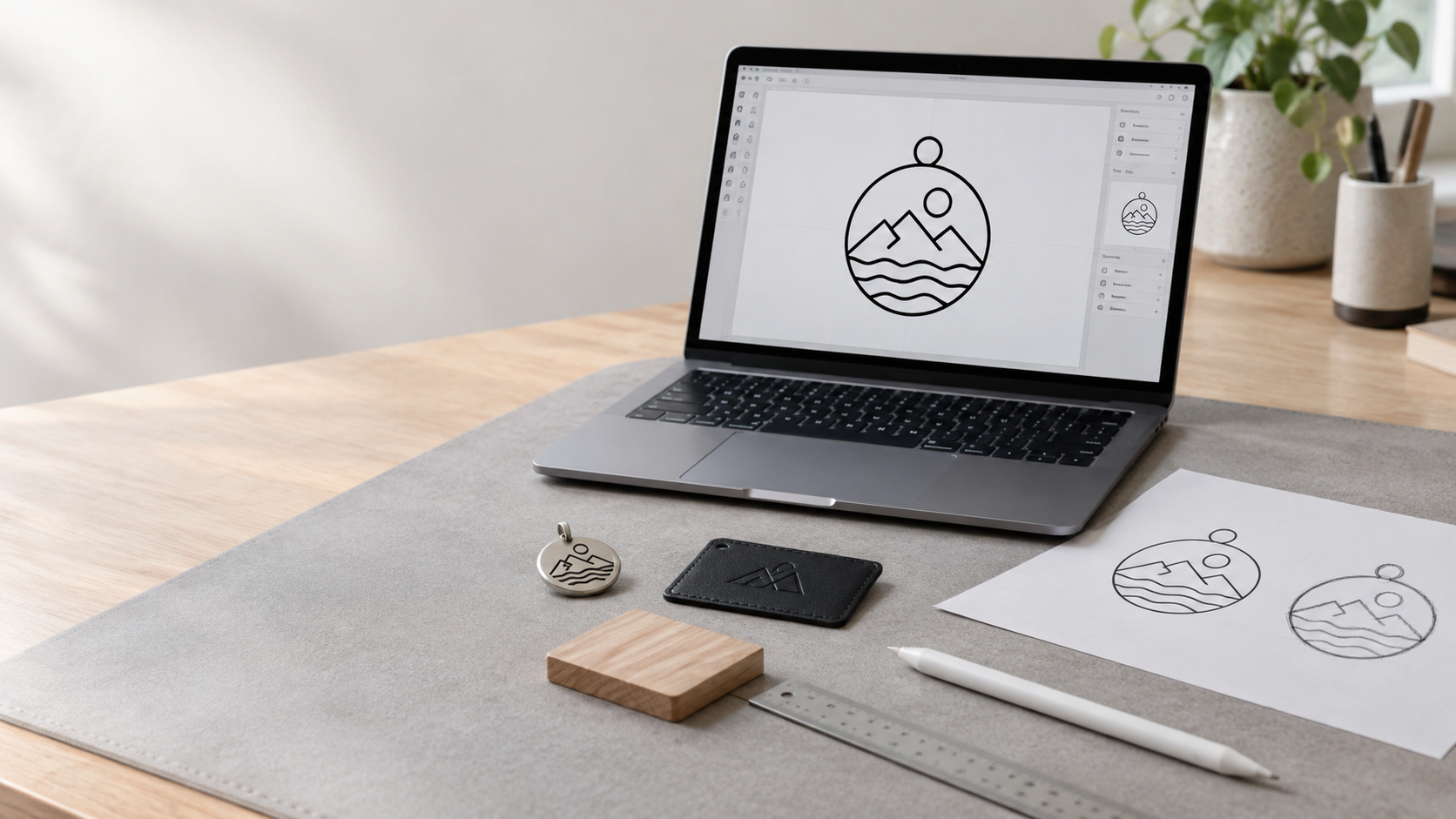
The best laser-engraving artwork is clean, correctly sized, high-contrast, and supplied in the right file format. For logos, text, and line designs, use a vector file such as SVG, AI, DXF, EPS, or vector PDF; for photographs, use a high-resolution PNG or TIFF at 300 DPI or above.
Start With the Right File Type
Laser machines interpret artwork in two main ways: vector paths and raster images. Choosing the correct type depends on what you are engraving.
|
Artwork type |
Best file format |
Best used for |
|
Vector artwork |
SVG, AI, DXF, EPS, vector PDF |
Logos, text, names, borders, icons, line art |
|
Raster artwork |
PNG, TIFF, high-resolution JPEG |
Photographs and detailed tonal images |
|
Technical drawings |
DXF, AI, SVG |
Precise shapes, cut lines, and production layouts |
Vector files contain paths rather than pixels, so they stay sharp at any size. They are ideal for jewellery tags, metal pendants, leather labels, wooden blanks, and branded accessories.
Raster files are made of pixels and are better suited to photographs. If you use a raster image, export it at the final engraving size and at least 300 DPI.
Set the Correct Size and Units
Always create the artwork at the actual size it will be engraved. This avoids scaling errors and helps you judge whether text and details will be readable on the finished product.
Before exporting your file:
- Set the canvas or artboard to the exact size of the engraving area.
- Work in millimetres if your laser software uses millimetres.
- Keep every element inside the artboard.
- Check the final dimensions before sending the file.
- Leave a safe margin between the design and the edge of the material.
A margin of at least 3–5 mm is a sensible starting point, although the exact requirement depends on the material, product shape, and engraving method.
Use Vector Artwork for Logos and Text
For logos, initials, monograms, names, and simple graphics, vector artwork gives the cleanest and most repeatable engraving results. The laser follows precise paths rather than interpreting pixel edges.
When preparing vector artwork:
- Draw shapes as clean, closed paths.
- Avoid unnecessary anchor points.
- Remove duplicate lines.
- Merge overlapping shapes where appropriate.
- Simplify overly complex paths.
If your design began as a low-resolution image, trace it carefully in vector software such as Adobe Illustrator or Inkscape. Check the result closely, because automatic tracing can create rough edges, unwanted background shapes, or distorted letterforms.
Convert Text to Outlines
One of the most common artwork mistakes is sending a file with live text. If the engraving provider or laser software does not have the exact font installed, the text may change, shift, or become unreadable.
Before exporting, convert all text to outlines or paths. In Adobe Illustrator, this is usually called Create Outlines; in other software, it may be called Convert to Curves or Flatten Text.
Also check letters with enclosed spaces, such as A, O, R, and D. Make sure the inner shapes are preserved and that the letterforms have not merged together during tracing or exporting.
Use High Contrast
Laser engraving works best with clear visual separation between the areas that will be engraved and the areas that will remain untouched. For most logos and text designs, pure black and white is the safest choice.
For photo engraving:
- Start with a sharp, high-resolution image.
- Increase contrast before engraving.
- Remove distracting backgrounds.
- Convert the image to black and white or greyscale, depending on the required effect.
- Avoid muddy mid-tones, which can engrave unevenly.
A strong black-and-white image gives the laser clearer instructions and produces a cleaner final result.
Keep Line Widths and Text Readable
Very fine lines and very small text can disappear, burn out, or fill in—especially on textured materials such as wood and leather. The laser beam removes or marks a slightly wider area than the exact line in the artwork.
As a practical guide:
- Keep engraved strokes at least around 0.25–0.3 mm.
- Avoid text smaller than about 6–8 pt, particularly on textured surfaces.
- Use simple, bold fonts for small text.
- Avoid ultra-thin serif fonts for jewellery tags, wooden labels, and leather.
- Test fine details on a sample before production.
For engraving on small jewellery components, simplify the design wherever possible. A bold monogram will usually engrave more clearly than a detailed logo with tiny lettering.
Organise Layers and Colours
If your design includes both engraving and cutting, separate the operations clearly using layers and colours. This helps the laser operator assign the correct settings to each part of the artwork.
A simple layer structure could be:
- Black fill: Area to be engraved
- Blue hairline stroke: Line engraving or scoring
- Red hairline stroke: Cutting line
- Separate layer: Guides, notes, or reference shapes that should not be engraved
Always confirm the colour conventions required by the laser provider or machine software, as these can vary.
Clean the File Before Exporting
A messy artwork file can cause double engraving, unwanted marks, missing shapes, or production delays. Before sending the file, open it in outline or preview mode and check exactly what the laser will see.
Remove:
- Hidden objects
- Unused layers
- Stray points
- Duplicate lines
- Dimension lines
- Masks and clipping paths
- Background images
- Text boxes that have not been converted to outlines.
Then check that all paths are closed unless an open path is intentional. Closed shapes are especially important for filled engraving areas and cut-outs.
Choose the Right Material Settings
Artwork preparation does not stop at the file. The material affects how fine details appear, how deeply the laser marks, and how much contrast the finished engraving has.
For example:
- Metal: Often produces crisp, permanent engraving; polished surfaces may need contrast adjustment.
- Leather: Can char slightly around fine lines, so avoid very thin details.
- Wood: Grain and resin can affect consistency, so test first.
- Acrylic: Usually engraves cleanly but requires correct power and speed settings.
- Anodised aluminium: Often produces high-contrast engraving with fine detail.
Always run a test engraving on a scrap piece or an inconspicuous area before committing to a full production run.
Final Artwork Checklist
Before sending your laser-engraving artwork, check that:
- The file is vector for logos, text, and line art.
- The file is 300 DPI or higher for photographic engraving.
- The artwork is created at the final engraving size.
- All text has been converted to outlines.
- Fonts are simple and readable at the final size.
- Lines are thick enough for the material.
- The design has strong contrast.
- Hidden objects, duplicate paths, and unused layers have been removed.
- Engraving and cutting areas are separated by layer or colour.
- A safe margin has been left around the design.
- A sample has been tested on the actual material.
Clean artwork saves time, reduces material waste, and produces a more professional finished piece.
FAQ
What is the best file format for laser engraving?
For logos, text, and line artwork, use a vector file such as SVG, AI, DXF, EPS, or vector PDF. For photographs, use a high-resolution PNG or TIFF at 300 DPI or above.
Should I use vector or raster artwork for laser engraving?
Use vector artwork for logos, names, monograms, borders, and simple graphics. Use raster artwork for photographs and detailed tonal images.
Why should text be converted to outlines?
Converting text to outlines prevents font substitution. It ensures the engraving provider can reproduce your design exactly, even if they do not have the original font installed.
What resolution do I need for photo engraving?
Use at least 300 DPI at the final engraving size. Higher resolution and stronger contrast generally produce cleaner photo engravings.
How thin can laser-engraved lines be?
Very thin lines can disappear or burn out, especially on wood and leather. As a general guide, keep strokes at least around 0.25–0.3 mm and test fine details first.
Can I engrave a JPEG logo?
You can, but a JPEG is a raster file and may lose quality when resized. For the sharpest result, convert the logo to clean vector artwork before engraving.
How much space should I leave around a laser-engraved design?
Leave a safe margin of at least 3–5 mm from the edge of the material, depending on the product, material, and engraving method.
Should I test my artwork before production?
Yes. Always engrave a sample on the same material before starting a production run. This helps you check detail size, contrast, depth, and overall readability.


